Libre Office Supprimer Entete Sur Page De Garde Uniquement
Okay, so picture this: I was frantically trying to finish my thesis the night before the deadline. Coffee was my best friend (and worst enemy), and the entire document was a chaotic mess of citations, figures, and existential dread. The cherry on top? A stubborn header insisting on making an appearance on my perfectly-designed title page. Talk about ruining the aesthetic!
Sound familiar? We've all been there, wrestling with LibreOffice, trying to bend it to our will. Today's mission: tackling that pesky header (or footer!) that just won't disappear from the cover page.
The problem isn't that LibreOffice is inherently evil, it's just…special. It uses this thing called styles, and these styles dictate how your document looks. Understanding them is the key to header-hiding success. Think of styles as the puppet masters behind your text's appearance. (And sometimes they're just very, very stubborn puppet masters.)
Must Read
The Magic Trick: Page Styles to the Rescue!
The secret sauce lies in using different page styles for your cover page and the rest of your document. We'll use a style called "First Page" for the cover and another (usually "Default Style") for everything else. This is how we tell LibreOffice: "Hey, cover page, you're different. Lay off the header!"
Here's the step-by-step guide to finally banishing that unwanted header:

- Insert a Page Break: Go to the end of your cover page (or wherever you want the header to start appearing) and insert a manual page break. Go to Insert > More Breaks > Manual Break. In the window that pops up, under "Style," select a new page style, e.g., "Default Style," and ensure "Change page number" is unchecked. Super important!
Why this works: We’ve told LibreOffice to start a new section, using a different page style from the cover page. Each style can have its own unique header/footer settings.
- Create a "First Page" Style (If It Doesn't Exist): Usually, LibreOffice comes with a "First Page" style. If not, go to the "Styles" pane on the right-hand side of your window (or press F11). Right-click on "Page Styles" and choose "New". Name it "First Page" (or something equally awesome).
A little side note: Make sure this style is based on "Default Style" (you can change that in the "Organizer" tab of the style settings). This ensures that it inherits all the basic formatting, so you're not starting from scratch.
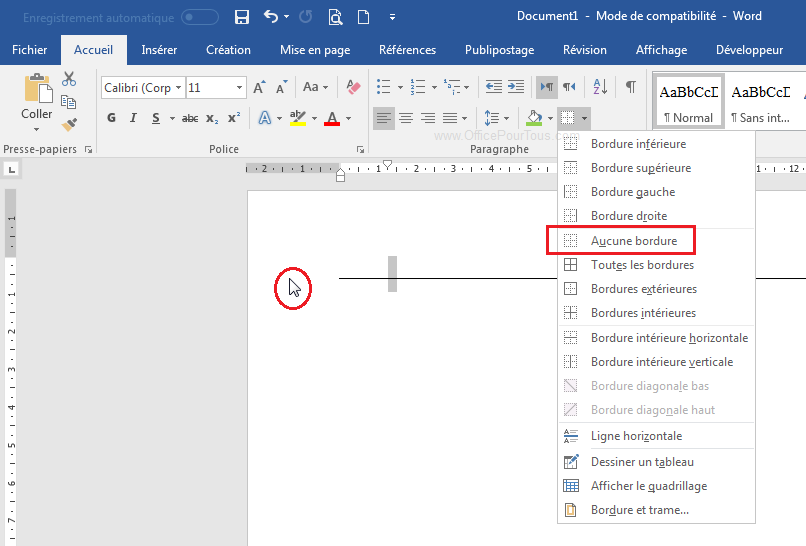
- Assign the "First Page" Style: On your title page (the very first page of your document), right-click anywhere in the text and go to "Styles" -> "Page Styles" -> "First Page". Or, if you have the Styles pane open, simply double-click "First Page" while the cursor is on your title page.
Almost there! This is where the magic really happens. We're telling LibreOffice that this particular page should use the formatting rules defined in the "First Page" style.
- Disable the Header in the "First Page" Style: Go back to the "Styles" pane, right-click on "First Page", and choose "Modify". In the "Page Style" window that appears, go to the "Header" tab. Uncheck the "Header on" box. Click "Apply" and then "OK".
Ta-da! Now, the header should be gone from your cover page but still visible on the rest of your document. If it's still showing, double-check you’ve applied the correct page style to only the cover page.
Troubleshooting Tips:
- Check Your Section Breaks: Make sure you have the manual page break inserted at the correct spot.
- The "Default Style" Header: Make sure the "Header on" option is checked in the "Default Style" (or whichever style you are using for the rest of your document).
- The "Same content left/right" option: In the "Header" (or "Footer") tab, ensure the "Same content left/right" box is checked if you want the same header on all pages.
And that's it! You've successfully conquered the cover page header monster. Now go forth and create beautiful, header-free title pages! (And maybe get some sleep... you've earned it.)